
- Home
- Help and Contact
How can we help you?
Answers to common questions about the IGC Server Suite, and a direct line to the IGCN team.
Frequently Asked Questions
Pick a question to see the answer.
Pre-Sale
How can I pay for the service?
We accept two payment methods:
- PayPal: with a PayPal account, or with a card through PayPal (Visa, Mastercard, American Express, Discover)
- Cryptocurrency: write to us for the details. A Server Suite license paid with cryptocurrency starts with 60 days instead of 30.
Would you like to pay another way? Ask us whether we can arrange it for you.
Renewal payments, are they required?
Yes. The Server Suite is a subscription: the first payment buys the license with its first period, and then you renew it for the term you choose.
- IGC.Premium (Season 6 Episode 3): renewal every 30 or 360 days
- IGC.Premium Plus (latest season): renewal every 30, 180 or 360 days
The first period is 30 days when you pay with PayPal and 60 days when you pay with cryptocurrency. The prices of the license and of each renewal term are in the Store.
What is the renewal payment for?
As all of our plans are based on subscription model, renewing the subscription is mandatory to be able to run and use the software. Active subscription offers ability to use additional benefits, such as support area, receive maintenance updates within purchased season. It is also allowing to keep the services and products quality improving making sure of best level of satisfaction of our customers.
Do you offer Website or Webshop?
Currently there is no web related service or product available from us.
A third-party service offers a fully compatible website - WebEngineCMS
Is hosting included?
Hosting must be purchased separately from third-party service vendor. We recommend to check www.ovh.com offer.
How do I select hosting for my server?
First think about what you expect from the server, above all the number of players you want online at most.
Up to 500 players a VPS can be enough, though it is not always cheaper. For more active players a dedicated server is the better choice.
The server requirements calculator shows how much memory, processor and disk your setup needs: choose the players, servers and realms you plan to run.
Will the server be global, or for one region?
This matters a lot when you choose the hosting. A server for one region should be hosted where the latency (connection delay) to and from that region is lowest. A global server needs the lowest latency for most of your target regions.
Server requirements (hardware and software)
The hardware a server needs depends on the number of GameServers and on their player limits, not on the players online at the moment: each GameServer sets aside memory for its whole player limit when it starts.
The server requirements calculator shows the memory, processor and disk for your own setup, and explains every number.
The package as shipped (500 players per server)
- Season 22 (IGC.Premium Plus: 6 GameServers, 2 DataServers, ConnectServer, ChatServer): 16 GB RAM, 4 cores (6 recommended), 200 GB NVMe SSD
- Season 6 (IGC.Premium: 2 GameServers, DataServer, ConnectServer, ChatServer): 8 GB RAM, 4 cores (6 recommended), 200 GB NVMe SSD
The processor needs AVX support. Count physical cores of 3.5 GHz or more (4.5 GHz recommended).
Software
-
Operating System, x64 only
- Windows Server 2012 or later
- Windows 7, Windows 8, Windows 10 or later
-
Database Engine
- Minimum: Microsoft SQL Server 2012 (SQLEXPRADV_x64_ENU.exe) or later
- Recommended: Microsoft SQL Server 2019 or later
- The free SQL Server Express allows 10 GB per database, enough for most servers
- Visual C++ Redistributable: Microsoft Visual C++ 2015-2022 Redistributable Package (x64), download, install it on the server machine
- Microsoft .NET Framework 4.8, download, install it on the server machine
- File compression, to extract the files we ship: any program that opens .rar, for example WinRAR or 7-Zip
- Text editor, to view and edit the configuration files: any you like, for example Notepad++
- Lua scripting: any editor, online or installed, that checks the syntax of Lua 5.3
Can I use IGC.ToolKit (Premium) on my personal computer?
Yes, ToolKit (Premium) can be used on personal or any other computer of your choice.
What is the difference between Universal and IGC ToolKit (Premium)?
It is the same tool. Which editors and features it offers depends on your Server Suite (IGC.Premium / IGC.Premium Plus) subscription.
Every customer with an active server license subscription gets the IGC version of ToolKit (Premium). Customers without an active subscription, or without a server license, get the Universal version (earlier called MU).
What is the IGC version?
The full version, with every editor and export option for the IGC Server Suite files (tool plugins are sold separately).
What is the Universal version?
The premium version without the editors and export options made only for the IGC Server Suite files.
And ToolKit (Lite)?
ToolKit (Lite) is included in every IGC Server Suite package, for the most common files. See the ToolKit page for what each version offers.
The switch between IGC and Universal is automatic and follows the status of your server license subscription. The tool may need a restart to apply it.
Premium Tools Requirements (ToolKit & Launcher)
IGC.Launcher (Premium)
-
Client side
- Operating System: Windows XP or later, x86 / x64
- .NET Framework: 3.5 at least, 4.5.2 recommended (TLS 1.2 certificate support)
-
Server side
- Operating System: Windows Server 2008 R2 or later, x86 / x64
- .NET Framework: 4.8 (with the available Windows Updates)
IGC.ToolKit (Premium)
- Operating System: Windows Vista or later, 64-bit only
- .NET Framework: 4.6.1
- Internet connection: required while ToolKit (Premium) is running (no offline mode)
Cost of upgrade to next season or episode
IGC.Premium Plus is bought with a selected season and part.
Each new season part is a season pass: the upgrade of your server license to that version. Season passes are bought in the License Manager, where each one shows its price. The price depends on how much content the season part brings.
- A new server license includes the upgrades to new seasons released in its first 3 months.
- With an active Pro or Pro Max plan (an add-on to your server license, in the License Manager), the newer season passes are included while the plan is active. The License Manager shows which ones.
Server files installation, is it included?
Yes, installation is offered within purchase price of first license of server suite subscription.
Check simple requirements to qualify and apply for the service. Read more at the article.
After-Sale Product Management
My server license subscription expired, will it be lost if not renewed?
No, expired license subscriptions can be renewed at anytime later, however it is important to keep in mind the renewal price may be already different as renewal terms may change, e.g. due to price politic change or other factor, such as inflation.
Where do I find my purchases and invoices?
All present and past purchases along with the invoices can be found in Client > Orders area.
My server license expired, can I still use ToolKit (Premium)?
Yes, you can still use the tool. While you have no active server license subscription, your ToolKit (Premium) works as the Universal version instead of the IGC version. The IGC version is only for customers with an active server license subscription.
The difference between the Universal and IGC versions is explained in another question of the FAQ.
The switch between IGC and Universal is automatic and follows the status of your server license subscription. The tool may need a restart to apply it.
Where do I manage my licenses from?
All purchases license subscriptions can be found and managed trough License Manager. Additional information regarding product licensing can be found in guides section.
How to buy Launcher (Premium)?
Launcher (Premium) requires an active server subscription, so it is bought in the License Manager after you buy a server license. Go to the License Manager, click Buy Launcher and complete the payment. The License Manager shows the current price.
Software is detected as a virus, what should I do?
What is false-positive?
The false-positive detection is when files or URLs that are incorrectly identified as malicious by the antivirus program. For wider explanation please refer to the article: https://support.avira.com/hc/en-us/articles/360002183358-What-is-a-false-positive-Avira-Antivirus-detection
Why one anti-virus detects potential threat in a file where other AV is not?
Each anti-virus software vendor is designing the AV software using different techniques and uses different methods to detect a threat. Some methods may not be able to analyze files protected with "packing" software that are used to protect against crack. For wider explanation please refer to article of one of AV software vendors: https://support.norton.com/sp/pl/pl/home/current/solutions/v118593681
Why some IGC software is detected with false-positive result?
IGC is using software known as "packers" to protect own software against reverse-engineering and crack. This approach is protecting both sides, us as software vendor against illegal software cracking, and customer, who is served with higher assurance that purchased software will not be cracked and published in public. IGC software does not contain any malware or code that can harm, control or collect personal information from customer's computer.
Server
I see "Server is full" when trying to connect
The server limits the connections per Hardware ID (HWID) of the player's PC and per IP address. The Hardware ID comes from the same system as our files licensing.
Season 22 (IGC.Premium Plus)
-
Global limit, for a whole ServerGroup (every 20 servers: 0-19, 20-39 and so on): DataServer\config.ini, section [JoinServer]
- HWIDConnectionLimit_General_Group: connections of one Hardware ID
- HWIDConnectionLimit_OffPlayer_Group: characters of one Hardware ID left in offline mode
- HWIDConnectionTotalLimit_Group: both together
- the same three with IP instead of HWID (IPConnectionLimit_General_Group and so on) limit one IP address
- Local limit, for one GameServer: its GameServer.ini, section [GameServerInfo]: HWIDConnectionLimit_General_Local, HWIDConnectionLimit_OffPlayer_Local, IPConnectionLimit_General_Local, IPConnectionLimit_OffPlayer_Local
- ConnectServer anti-flood: ConnectServer\Config.ini, section [AntiFlood], MaxConnectionsPerIP
Season 6 (IGC.Premium)
- Global limit: MachineIDConnectionLimitPerGroup in \DataServer\IGCDS.ini, for a whole ServerGroup. Reload it with the "Global Connections Limit" option of the DataServer menu, or restart the DataServer.
- Local limit: MachineIDConnectionLimitCount in the GameServer.ini of each GameServer. Reload it with the "Common Option" reload of the GameServer menu, or restart the GameServer.
- ConnectServer anti-flood: MaxConnectionsPerIP in \ConnectServer\IGCCS.ini
- One game client per PC: run IGC.ServerInfoTool.exe from the Tools folder of the Server Suite package, fill in the fields and save the ServerInfo.bmd file
Note: keep MaxConnectionsPerIP at 3-5 or more, even when you allow only one game client per player, so players do not run into the limit for no reason.
Restart the server application after a change, or use the reload option of its menu.
Why Game Client display level 401 or higher for my character?
Since ex700 and for any later version Game Client displays a sum of both, normal and master levels.
As far as the Server still recognizes these levels are visually displayed as total in Game Client in C window. The Master Level only can be checked under A window.
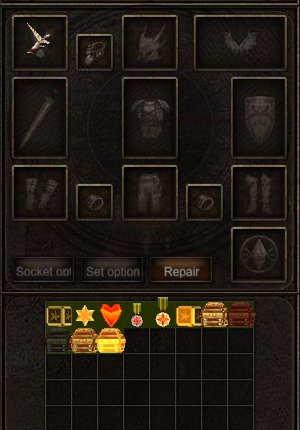
How do I find index of Box of Kundun, Box of Heaven, medals or Heart of Love?
Those items do not have their own index, are controlled by item level of item 14,11 (Box of Luck).
- Box of luck (14,11)
- Start of Xmas (14,11) +1
- Firecracker (14,11) +2
- Heart of Love (14,11) +3
- Silver Medal (14,11) +5
- Gold Medal (14,11) +6
- Box of Heaven (14,11) +7
- Box of Kundun+1 (14,11) +8
- Box of Kundun+2 (14,11) +9
- Box of Kundun+3 (14,11) +10
- Box of Kundun+4 (14,11) +11
- Box of Kundun+5 (14,11) +12
How can I drop Fenrir item using GM command or how to put Fenrir to shop?
Fenrir Item is recognizes as (13,37) and its type is controlled by item level and options.
Item drop command
Season 6 Episode 3
/item 13 37 1 0 0 0 - Red Fenrir
/item 13 37 1 0 0 1 - Black Fenrir
/item 13 37 1 0 0 2 - Blue Fenrir
/item 13 37 1 0 0 4 - Golden Fenrir
Season 10 and later
/item 13 37 0 0 1 - Red Fenrir
/item 13 37 0 0 1 0 0 3 - Gold Fenrir
/item 13 37 0 0 1 0 0 4 - Blue Fenrir
/item 13 37 0 0 1 0 0 5 - Black Fenrir
Shops
Season 6 Episode 3
<Item Cat="13" Index="37" Level="0" Durability="255" Skill="1" Luck="0" Option="0" Exc="0" SetItem="0" SocketCount="0" Elemental="0" Serial="1" />
<Item Cat="13" Index="37" Level="0" Durability="255" Skill="1" Luck="0" Option="0" Exc="1" SetItem="0" SocketCount="0" Elemental="0" Serial="1" />
<Item Cat="13" Index="37" Level="0" Durability="255" Skill="1" Luck="0" Option="0" Exc="2" SetItem="0" SocketCount="0" Elemental="0" Serial="1" />
<Item Cat="13" Index="37" Level="0" Durability="255" Skill="1" Luck="0" Option="0" Exc="4" SetItem="0" SocketCount="0" Elemental="0" Serial="1" />
Season 10 and later
<Item Cat="13" Index="37" Level="0" Durability="0" Skill="1" Luck="0" Option="0" Exc="-1" SetItem="0" SocketCount="0" Elemental="0" Serial="0" />
<Item Cat="13" Index="37" Level="0" Durability="0" Skill="1" Luck="0" Option="0" Exc="3" SetItem="0" SocketCount="0" Elemental="0" Serial="0" />
<Item Cat="13" Index="37" Level="0" Durability="0" Skill="1" Luck="0" Option="0" Exc="4" SetItem="0" SocketCount="0" Elemental="0" Serial="0" />
<Item Cat="13" Index="37" Level="0" Durability="0" Skill="1" Luck="0" Option="0" Exc="5" SetItem="0" SocketCount="0" Elemental="0" Serial="0" />
Can I add cash shop items to regular shops?
Technically it is possible, however answer is no.
Cash Shop items have been designed for purpose of Cash Shop only. Using them in regular shops may cause issues like no sell or buy price, impossibility to sell the item and other unrecognized ones.
There is a packets loss for on my server, my players getting disconnected
There is many aspects that may cause possible packet loss but mostly experienced among Customers is using single DNS configuration to resolve host names.
Often happens that to connect to the server instead of clean IP address a hostnames assigned to the server IP is used. In that case it is worth to make sure that the network adapter configuration is based on at least two (2) DNSes.
Very often VPS/Dedicated server vendor provide machines with a single DNS configured. How to proceed to add secondary DNS?
- In Control Panel open Network and Sharing Center, on the left click Change Adapter settings
- Right click on network connection adapter that is used and select properties
- Left Click on Internet Protocol Version 4 (TCP/IPv4) and click properties below
-
In the bottom part of new window a Preferred DNS Server and Alternative DNS Server should be visible, if the alternative one is empty fill it out with the following
- 8.8.8.8
- If necessary the preferred DNS can be switched to Google's one, however, if not having a reason to do it it is better to leave the preferred as shipped by the service vendor as their own DNS Server may be used to handle server machine service - good example is here OVH. If decided to change them both then set preferred to 8.8.8.8 and alternative to 8.8.4.4
EXTRA STEP: If not used then IPv6 can be disabled to close possible way to attack the server. To do that return to window of step 2 (described above) and on the list uncheck Internet Protocol Version 6 (TCP/IPv6)
Cannot create Rage Fighter and Summoner in my server, what to do?
IGC Server Suite files are based on the GMO version, in which Summoner and Rage Fighter are available after buying their character card in the Cash Shop.
Season 22: the DataServer sets this in config.ini, section [DataServer], for each class:
- RageFighterEnableCreateCheckType / SummonerEnableCreateCheckType = 1: the class needs its character card (the RageFighter / Summoner column of the account in the AccountCharacter table, set by the card from the Cash Shop or by the query in step 1 below)
- = 0: the class opens once a character of the account reaches RageFighterCreateMinLevel / SummonerCreateMinLevel
The other classes have the same settings. Step 2 below (triggers) is for Season 6, which has no such settings.
1. To allow players to create these characters from beginning (without a need to purchase character card) execute following query on MuOnline database
For Rage Fighter
USE [MuOnline] GO ALTER TABLE dbo.AccountCharacter DROP CONSTRAINT DF_AccountCharacter_RageFighter GO ALTER TABLE dbo.AccountCharacter ADD CONSTRAINT DF_AccountCharacter_RageFighter DEFAULT ((1)) FOR RageFighter GO UPDATE dbo.AccountCharacter SET RageFighter = 1 GO
For Summoner
USE [MuOnline] GO ALTER TABLE dbo.AccountCharacter DROP CONSTRAINT DF_AccountCharacter_Summoner GO ALTER TABLE dbo.AccountCharacter ADD CONSTRAINT DF_AccountCharacter_Summoner DEFAULT ((1)) FOR Summoner GO UPDATE dbo.AccountCharacter SET Summoner = 1 GO
Getting following error? DF_AccountCharacter_RageFighter' is not a constraint
Run following query Sp_help AccountCharacter and check valid Constraint names for Summoner and Rage Fighter columns
2. Allow Players to create these characters once reached specified level (Season 6)
For Rage Fighter
USE [MuOnline] GO CREATE TRIGGER RageFighterActivation ON [dbo].[Character] FOR UPDATE AS SET NOCOUNT ON DECLARE @AccountID varchar(10); DECLARE @cLevel int; SELECT @AccountID=i.AccountID FROM inserted i; SELECT @cLevel=i.cLevel FROM inserted i; IF (UPDATE(cLevel) AND (@cLevel >= 200)) -- Edit desired level in this line UPDATE dbo.AccountCharacter SET RageFighter = 1 WHERE Id = @AccountID GO
For Summoner
USE [MuOnline] GO CREATE TRIGGER SummonerActivation ON [dbo].[Character] FOR UPDATE AS SET NOCOUNT ON DECLARE @AccountID varchar(10); DECLARE @cLevel int; SELECT @AccountID=i.AccountID FROM inserted i; SELECT @cLevel=i.cLevel FROM inserted i; IF (UPDATE(cLevel) AND (@cLevel >= 150)) -- Edit desired level in this line UPDATE dbo.AccountCharacter SET Summoner = 1 WHERE Id = @AccountID GO
One-click run script is shipped with Server Suite package.
How can I enable Multi-Warehouse?
Multi-Warehouse needs three steps:
- In Common.ini of the Data folder, section [General], set MultiWarehouse to 1 (Season 6: IsMultiWareHouse in \Data\Common.ini)
- Set MultiWarehouseCount to the number of additional warehouses, max 255 (Season 6: MultiWareHouseCount); in Season 22 MultiWarehouseSwitchDelay sets the seconds between two switches
- Run this script on the MuOnline database: it adds one Items column for each additional warehouse
USE [MuOnline] GO
-- Script adds additional columns to warehouse table
-- Edit to add more or less warehouses (depending of MultiWareHouseCount setting)
-- To add more simply add extra 'ItemsX varbinary(7680) NULL' at the end of the script (before GO statement)

ALTER TABLE [dbo].[warehouse] ADD Items2 varbinary(7680) NULL, -- /ware1
Items3 varbinary(7680) NULL, -- /ware2
Items4 varbinary(7680) NULL, -- /ware3
Items5 varbinary(7680) NULL, -- /ware4
Items6 varbinary(7680) NULL, -- /ware5
Items7 varbinary(7680) NULL, -- /ware6
Items8 varbinary(7680) NULL, -- /ware7
Items9 varbinary(7680) NULL, -- /ware8
Items10 varbinary(7680) NULL, -- /ware9
Items11 varbinary(7680) NULL, -- /ware10
Items12 varbinary(7680) NULL, -- /ware11
Items13 varbinary(7680) NULL, -- /ware12
Items14 varbinary(7680) NULL, -- /ware13
Items15 varbinary(7680) NULL, -- /ware14
Items16 varbinary(7680) NULL, -- /ware15
Items17 varbinary(7680) NULL, -- /ware16
Items18 varbinary(7680) NULL, -- /ware17
Items19 varbinary(7680) NULL, -- /ware18
Items20 varbinary(7680) NULL -- /ware19
GO
Troubleshooting
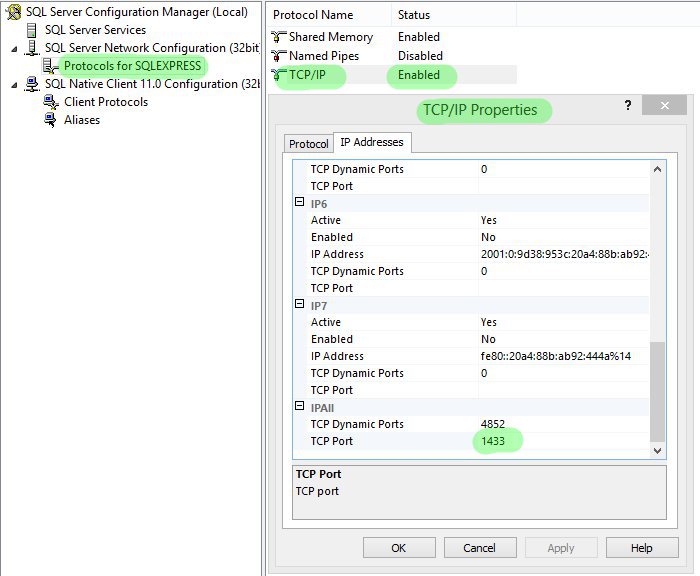
Having SQL Connection Error?
Make sure that TCP Port is configured as 1433 and TCP Dynamic Port is left blank in SQL Server Configuration Manager.
I found a bug, what should I do?
Report it in the right category of the Bug Tracker. The report form asks for everything we need to understand and reproduce the issue:
- Reproduction steps, step by step, with the time, account and character name the issue is about
- Actual result and expected result
- Logs URL: the log files of the DataServer and the GameServers the issue is about, zipped and uploaded to a file host
- Dump URL: for a crash, its *.dmp files, zipped and uploaded to a file host
- Screenshots or a video help a lot (optional)
Only you and our staff see the Logs URL, the Dump URL and the Confidential Info of your report.
Staff rate every report. A report without the needed details may be closed without review and get a bad mark; collect too many bad marks and reporting is blocked for a while.
My Game Server or other application freezing, what to do?
Most common source of this type of issues is related to configuration mistake, e.g.
- Dividing by 0
- Missing quota "
- Mistake in Lua scripts (review GS logs for potential Lua related errors)
-
or any other improper setup.
IGC Server Suite applications are designed to create dump file (*.dmp) upon application crash which allows for further investigation. However, there might be cases that application crash without dump being generated automatically.
If application froze, what means window is still appearing in front of the desktop but not responding or application crash due to memory corruption, there is a chance that the dump file won't be produced. In such case it must be generated manually.
To do this, without closing frozen application:
- Go to Windows Task Manager → Processes or Details tab
- Locate process of application to generate dump from (usually same as file name)
- Right click on the process and select Create Dump File
- The file will be created and saving location displayed
- Compress it using ZIP, WinRAR or 7z
- Upload to own or external hosting and post within Dump URL field as report posted in Bug Tracker
No question matches your search. Ask us directly
Contact us
Questions about the IGC Server Suite, your license or an order? Write to us: the message goes straight to the IGCN team.